Shopify Canvas is a new AI theme editor that Shopify launched on October 1, 2026. Instead of editing one page at a time, you see every page of your store on one board and change it by asking Sidekick, Shopify's AI assistant, which writes the theme code for you. Access is still limited, but we got it early and tested Canvas on a staging copy of a watch brand's store that we work with.
We gave it two tasks. A small one: add a block with the key benefits of a model to the product page. A big one: redesign the first screen of the home page. Below we show how Canvas handled both, what code the AI wrote, what it can't do yet, and who should start using it now.
In short
Sidekick doesn't just rearrange ready-made sections: it writes theme code. In our tests it built a product page block with logic for each type of watch and redesigned the home page hero in about three and a half minutes, checking its own work on desktop and mobile.
The code came out clean. For a live store it still needs a review: data, speed, and how it works with apps.
At launch Canvas has serious limits: app blocks and third-party themes don't work, and there's no support for multiple languages or markets.
What Shopify Canvas is
Shopify Canvas is a visual workspace for editing a Shopify theme with AI. All store templates sit side by side on one board, and Sidekick edits the theme code from plain-language requests. At launch, it runs alongside the classic theme editor, works only on desktop, and is open to some stores only.
You can pan, zoom, and open any template full screen.
There are two ways to make changes. The familiar one: click a block and adjust its settings. The new one: tell Shopify Sidekick, the AI assistant built into the Shopify admin, what you want in plain language. Sidekick edits the theme code directly, and the result shows up on the board right away.
Shopify Canvas vs the classic theme editor
The classic editor shows one page at a time and lets you change only what the theme's sections and settings allow. Canvas shows every template at once, and Sidekick can write new theme code, not just rearrange blocks. The trade-off: in Canvas you can't add a block by hand, and a theme edited there stops receiving updates from the theme developer.
Shopify says plainly that Canvas isn't replacing the existing editor yet (Shopify announcement).
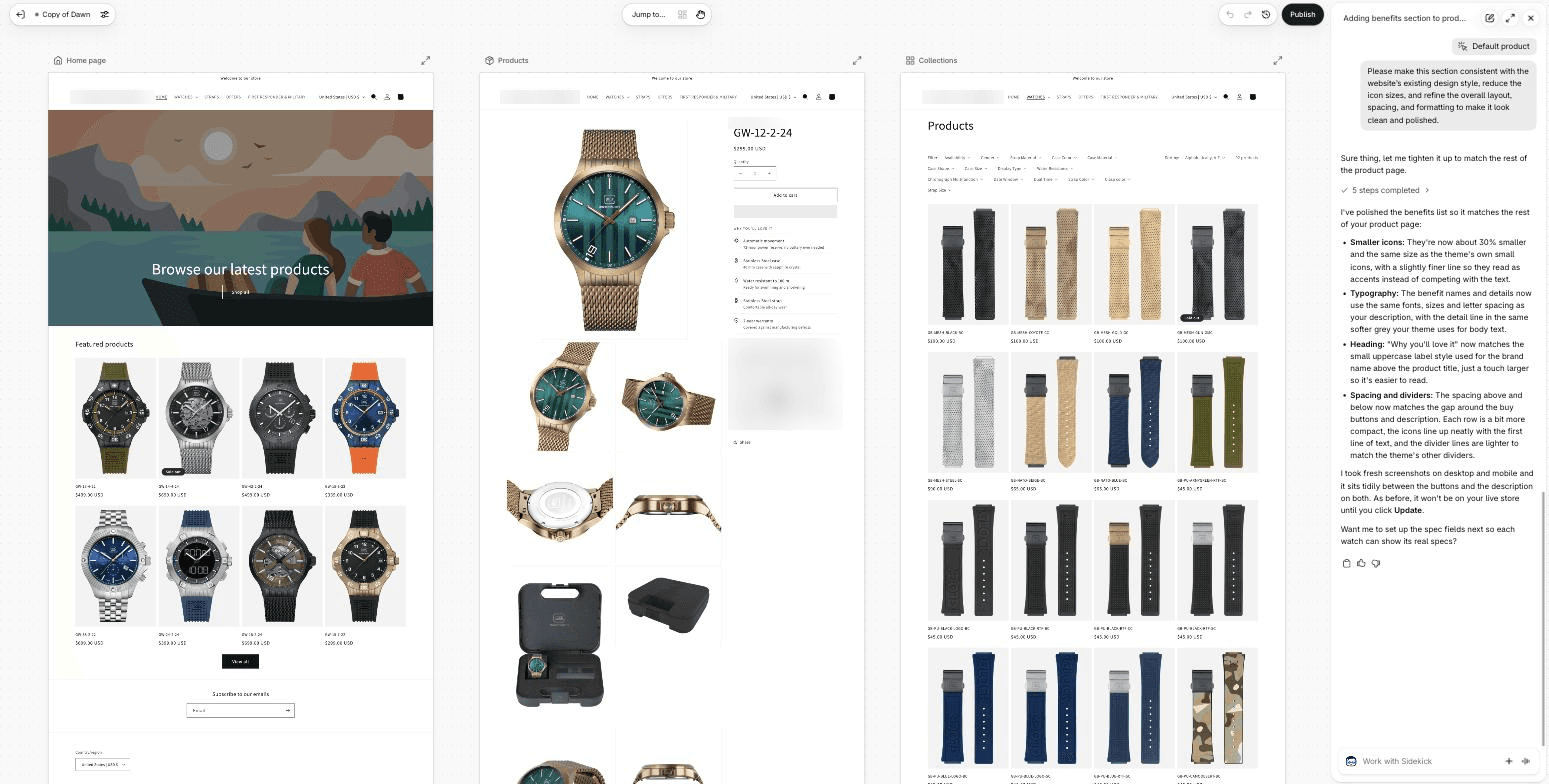
Screenshot 1. Canvas: home page, product page, and collection on one board, with the Sidekick chat on the right. In the screenshots from the first test, the store name is blurred. For the second test we replaced it with DEMO WATCH STORE.
Test 1: a benefits block on the product page
We used a staging copy of a watch store built on the Dawn theme. Below the buy buttons on the product page there was nothing explaining why a particular model is worth buying. Normally a block like this is part of Shopify theme development: a developer codes the section, adds settings, decides where the data comes from, and agrees on the design with the client.
We wrote the request to Sidekick the way a store owner or a marketer would:
"Could you add a new benefits section below the Add to Cart button on the product page? The section should highlight key watch features, such as power reserve (for mechanical watches) or battery-powered movement, materials used, and other relevant benefits. Please include icons for each benefit and make the content dynamic based on the watch's specifications. Feel free to suggest your own ideas for the layout, design, and benefits to display. For now, you can use completely made-up product specifications and data. I just want to see how this section could look and work."
What Sidekick did
The first thing we noticed: Sidekick didn't start writing code right away. It first worked out which theme the store runs on and offered a layout to choose from: a slim list with an icon on the left, the benefit name and a one-line detail on the right, and hairline dividers between rows. We went with it.
After that it worked like a developer, only faster, and reported every step:
Figured out how the product info column is built: read the product.json template, the main-product.liquid section, and the translations file;
Created a separate file for the block, watch-benefits.liquid, connected it in the section and the product template, and moved the text into the translations file instead of hard-coding it;
Checked the theme for errors, opened the product page, and took screenshots on desktop and mobile;
Only then reported what it had done and how the block works.
Screenshots 2 and 3. Our request and the layout choice; the files Sidekick read and changed.
Sidekick came up with the block's logic on its own:
mechanical watches get a gear icon and their power reserve, quartz watches a battery icon, solar watches a sun icon;
water resistance is put into plain language: under 50 m means rain and splashes, 50 m light swimming, 100 m snorkeling, 200 m and above diving;
if a model is missing some data, that row simply doesn't show.
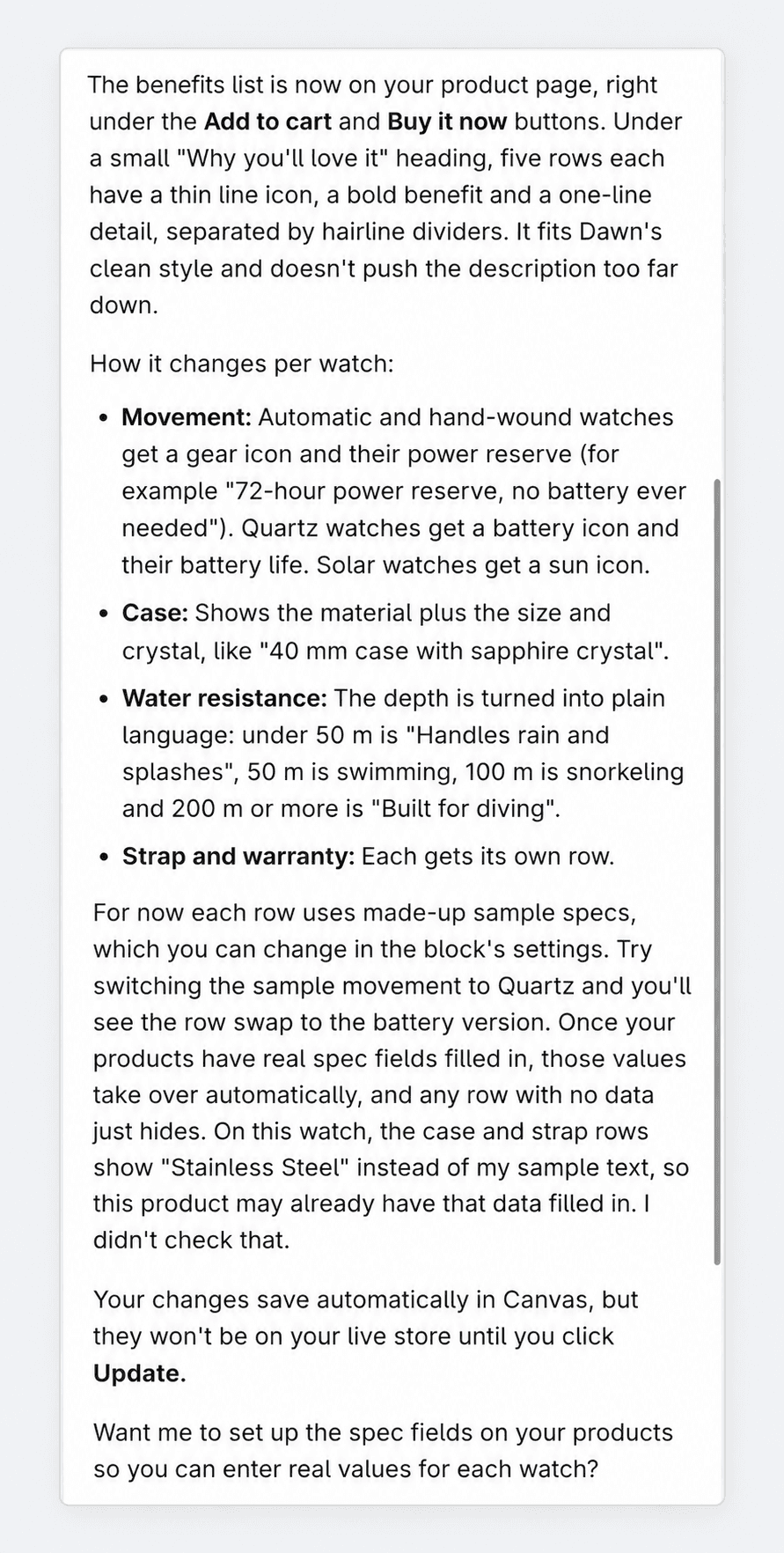
Screenshot 4. Sidekick's report on the first version: how the block changes from one watch to another.
We liked that Sidekick was upfront about what it hadn't checked. On the test model, two rows showed "Stainless Steel" instead of its sample data. Sidekick pointed out that the product probably already had that data filled in and said it hadn't verified it.
Second round
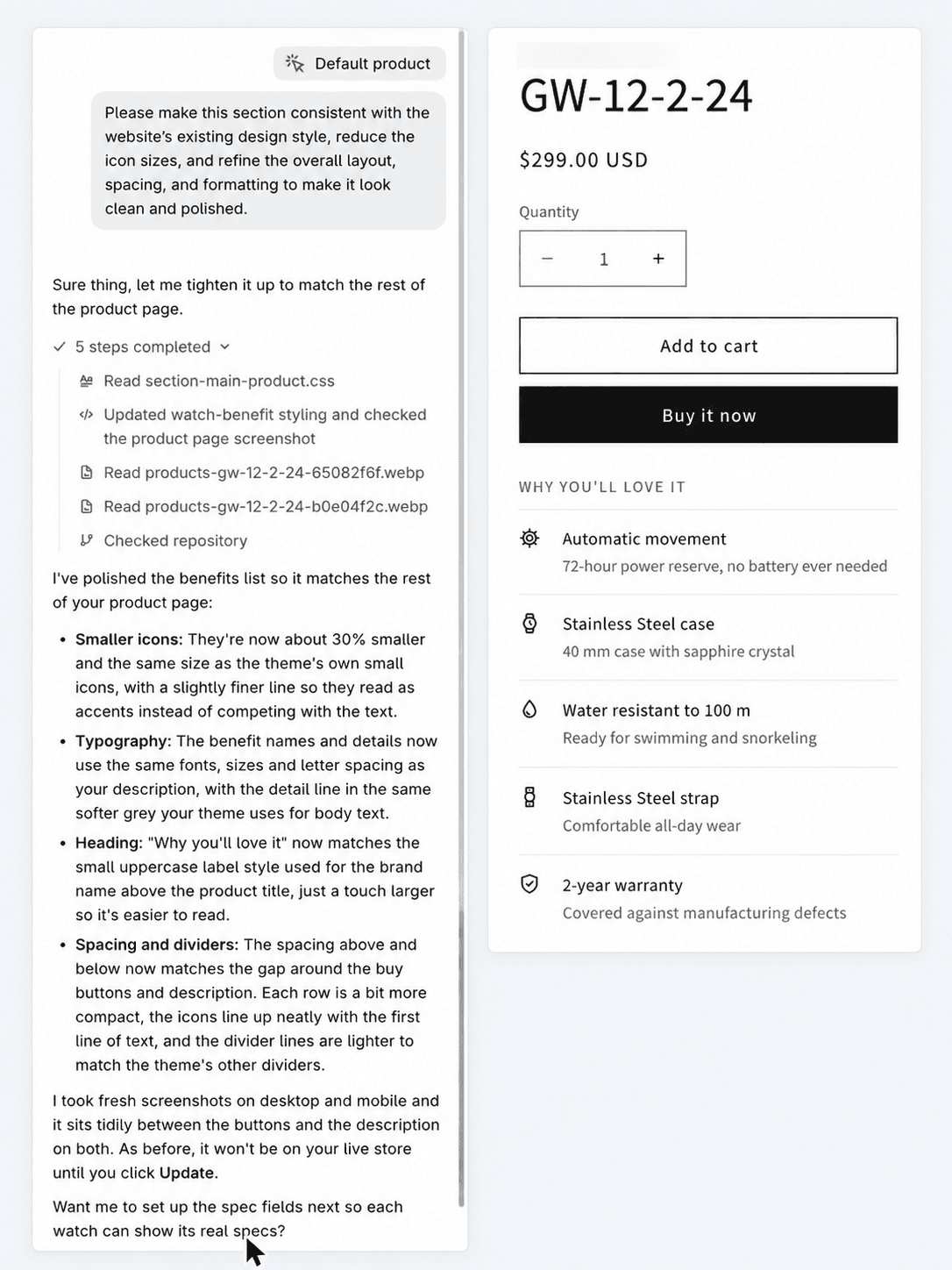
The first version looked a bit heavy: the icons competed with the text. We asked Sidekick to match the site's style, make the icons smaller, and tidy up the spacing. Sidekick:
made the icons about 30% smaller with a thinner line;
used the same fonts and sizes as the product description;
styled the "Why you'll love it" heading like the brand label above the product title;
evened out the spacing and lightened the dividers to match the rest of the theme.
According to the version history, two minutes passed between the first version of the block and the revision.
Screenshots 5 and 6. The second request and Sidekick's report; the finished block on the product page.
How it looks on the site
You can open any page full screen and see it the way a shopper will, with real products and animations. It's a live render of the theme, not a picture.
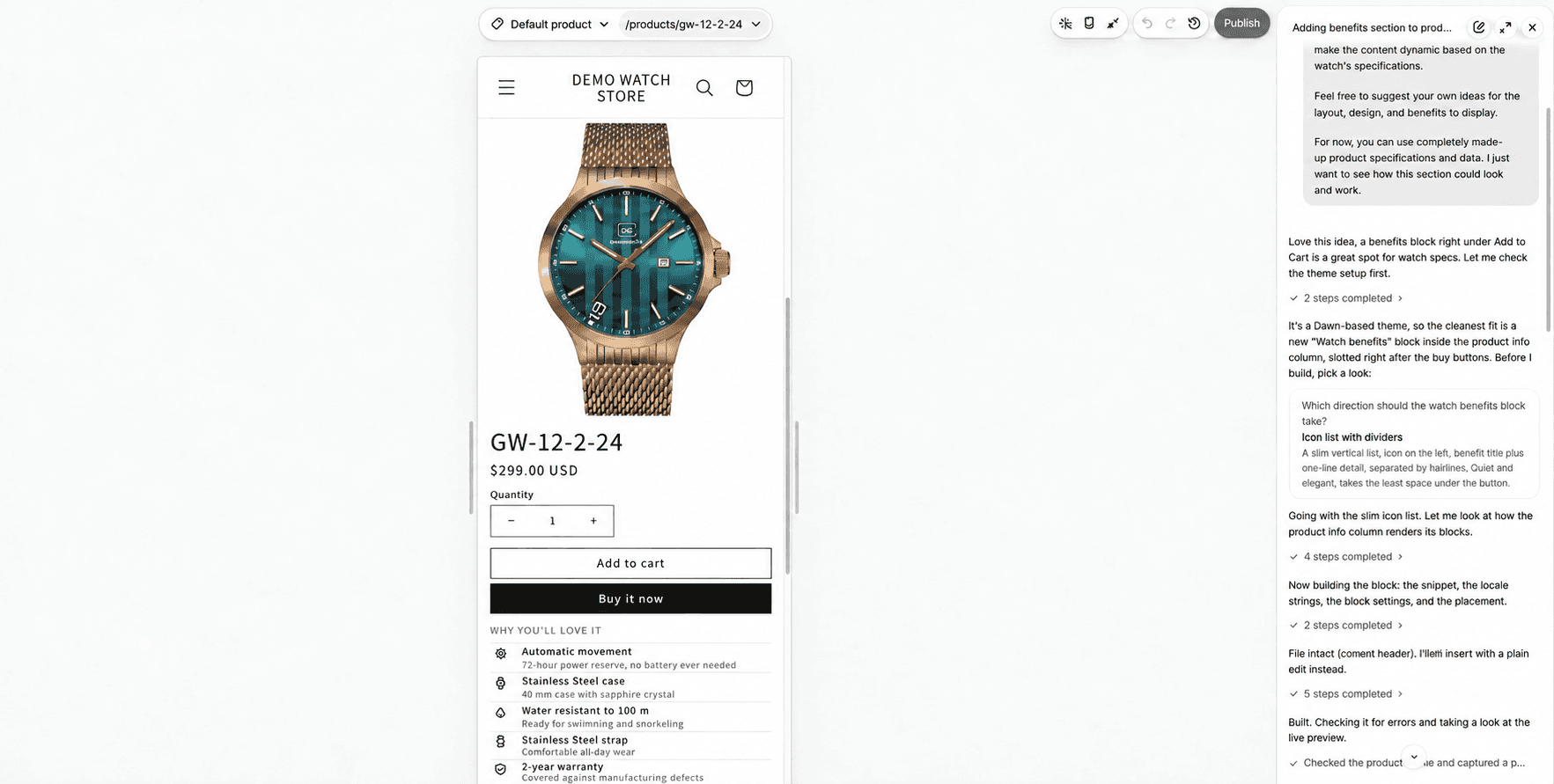
Screenshot 7. The product page in Canvas full-screen mode. The benefits block sits right under the buy buttons.
Screenshot 8. The same page in mobile mode. The preview switches between desktop, tablet, and phone, or you can drag it to any width.
What we found in the code
We looked at the new block's markup on the storefront. It reads like the work of a careful developer:
class names are clear and follow one convention;
the benefits are marked up as a list, not a stack of separate blocks;
icons are hidden from screen readers, so screen reader users hear only the text;
the heading and the list reuse styles that already exist in Dawn, with only a few lines of extra CSS;
the text lives in the translations file.
For a live store that isn't enough. The block runs mostly on made-up data, and to show real specs that data has to be added to the products. Sidekick offered to do that as the next step. Until then the block can mislead: every product got the same sample values, so on a solar watch from the same store it still showed "Automatic movement, 72-hour power reserve". The AI didn't check page speed, how the block behaves on other models, or how it works with apps. That is still a person's job.
Test 2: a new hero for the home page
The first task was small and precise. For the second one we gave Sidekick a bigger brief: redesign the first screen of the home page. On the staging copy it still showed the default illustration from the Dawn theme with a generic "Browse our latest products" line.
The request:
"Redesign the home page hero so it feels like a premium watch brand: a large photo of one of our watches, a short bold headline, one line of supporting text and a clear Shop watches button. Keep it consistent with the theme and make sure it looks good on mobile."
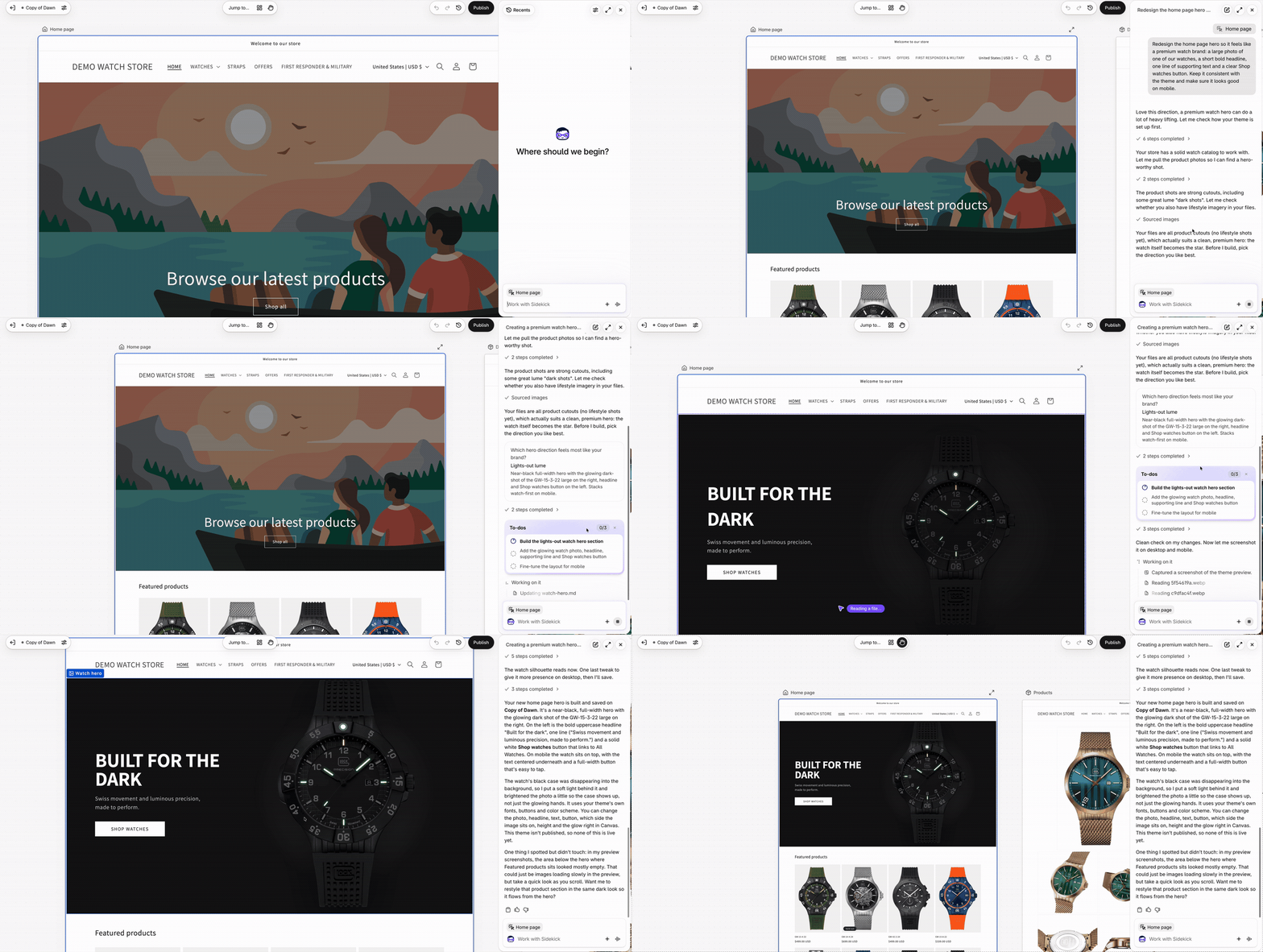
GIF 1. The whole process: about three and a half minutes of work, sped up to 33 seconds.
What we noticed:
Sidekick looked through the product photos in the store and offered three directions, each with a name and a short description: "Lights-out lume", "Gallery spotlight", and "Split editorial". We picked the first one.
It chose a shot of a watch with glowing hands in the dark, placed it large on the right, and put a bold headline, one line of text, and a "Shop watches" button on the left.
It noticed that the black watch case blended into the background and added a soft light behind it.
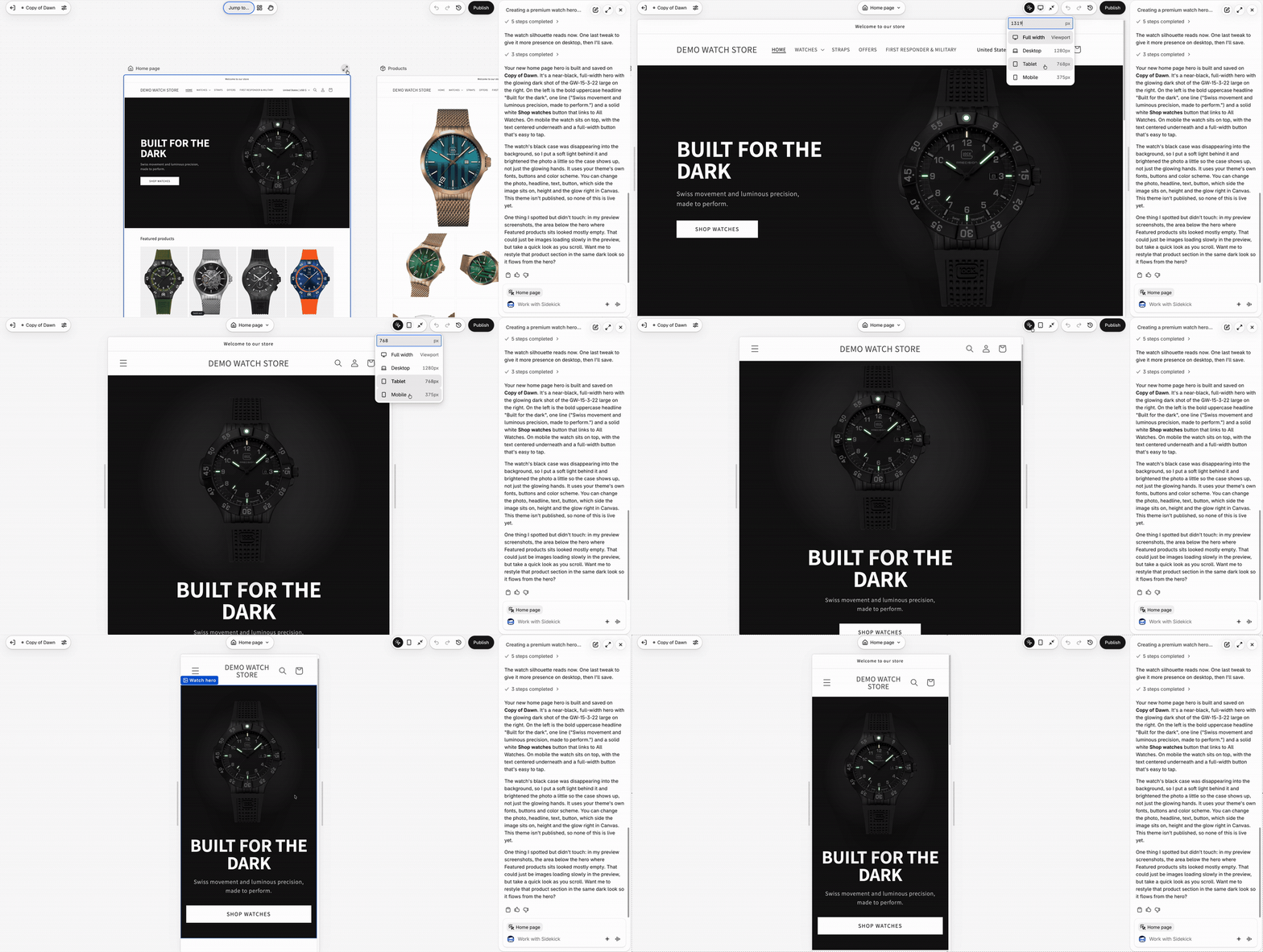
On mobile it put the watch on top, centered the text, and made the button full width.
It reminded us that the theme is not published, so shoppers see none of this yet.
It spotted that the Featured products block under the hero looked empty in its preview screenshots and asked whether to restyle it to match.
GIF 2. The new hero on desktop, tablet and phone.
Other useful details
Changes save automatically, but shoppers see nothing until you click Publish or Update.
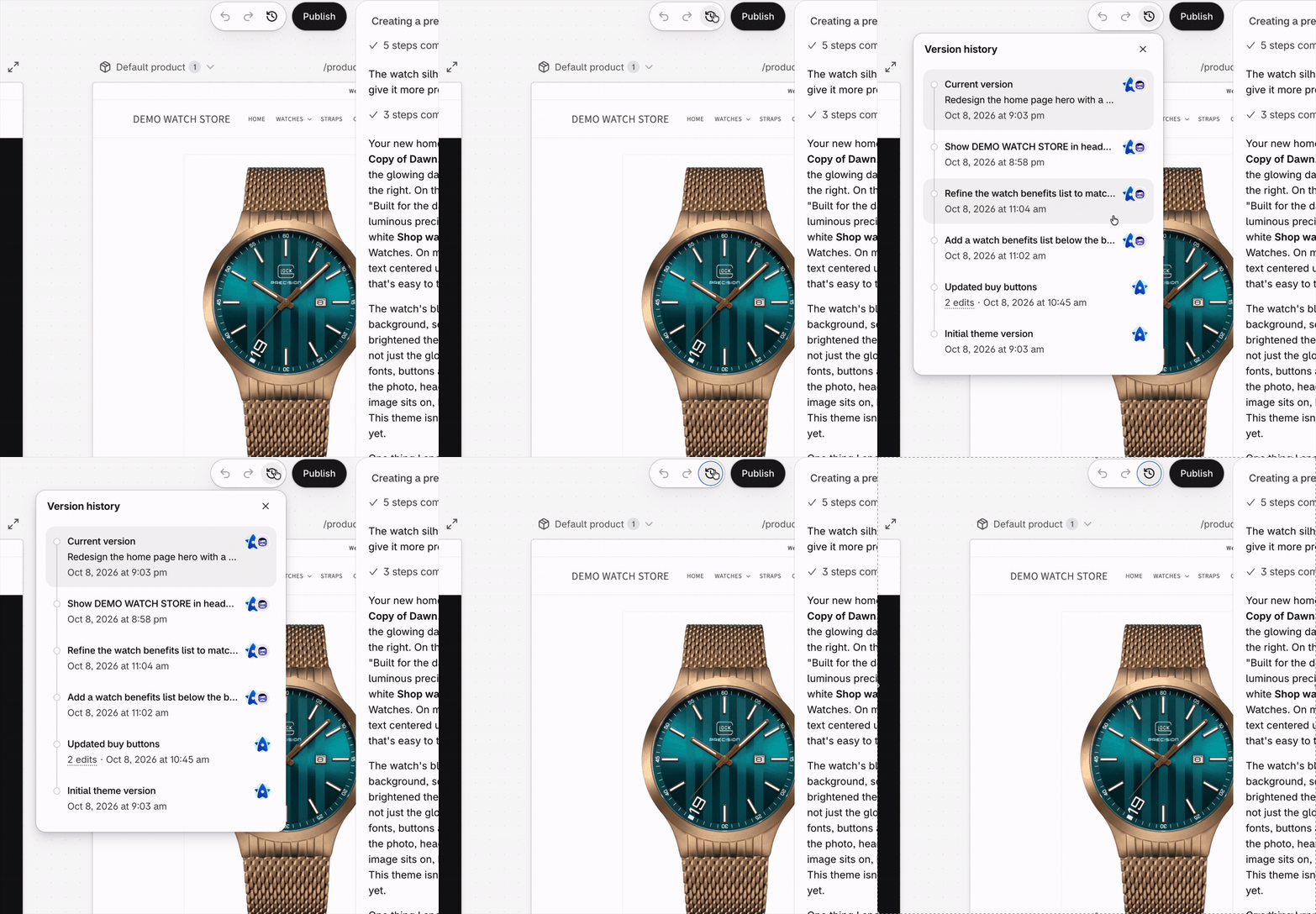
Every Sidekick change is saved as a separate version that you can open and restore.
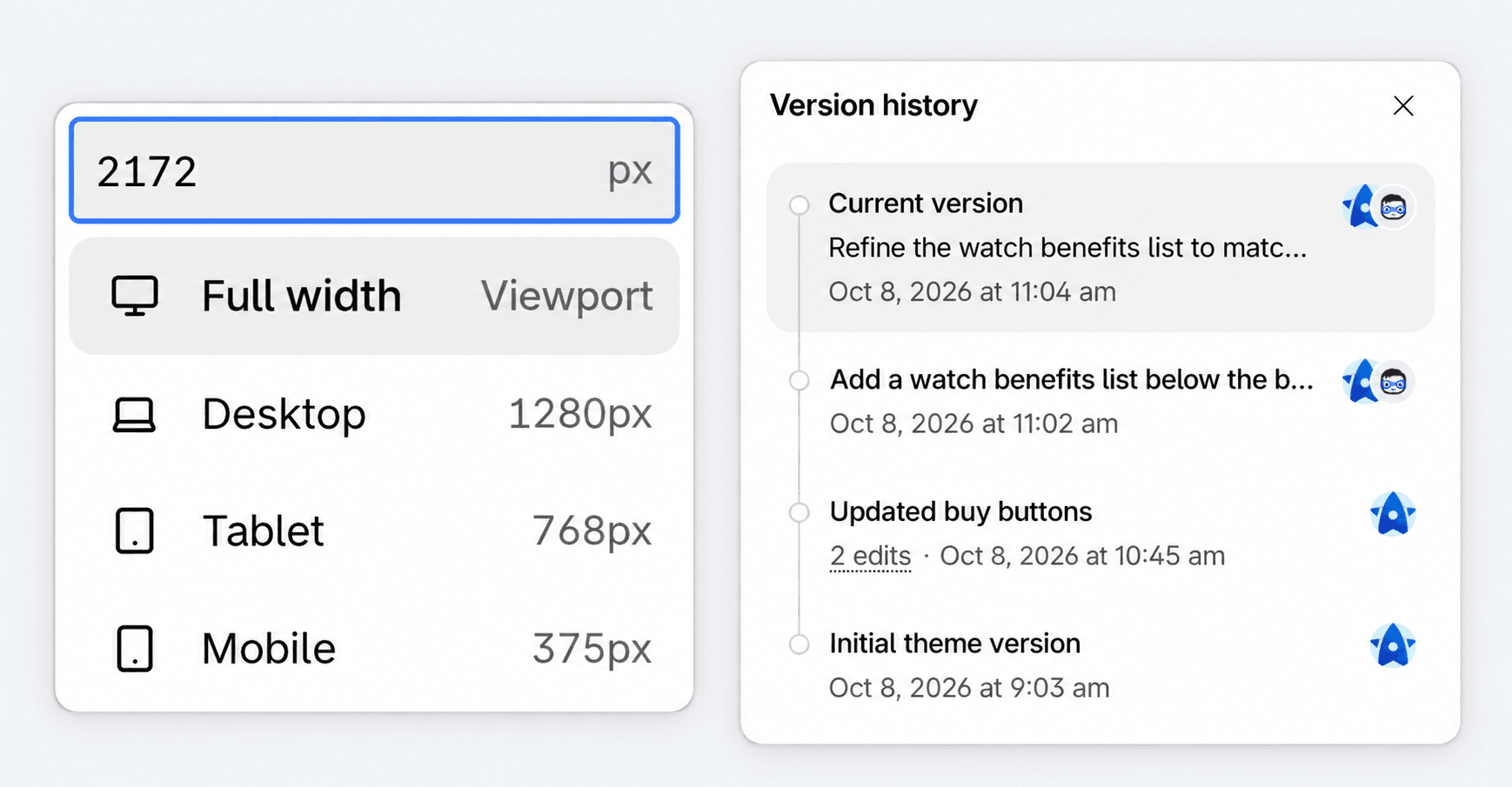
The preview switches between desktop, tablet, and phone, and you can set the width by hand.
Global theme settings such as colors, fonts, and the logo open in a separate panel.
Screenshots 9 and 10. Preview width options and the version history, with both changes from the first test.
GIF 3. Version history: every Sidekick change is saved as a separate version, including the one where we replaced the store name with DEMO WATCH STORE for this article.
Shopify Canvas limitations at launch
According to Shopify's help center as of October 8, 2026 (Canvas requirements):
Canvas is in early access: it's open only to some stores, and the editor itself runs only on desktop computers. It also requires a plan that includes theme customization.
It supports themes built by Shopify and custom-built themes. Third-party themes, including most paid themes from the Theme Store, don't work yet.
You can't add or configure app blocks in Canvas: reviews, subscriptions, upsells. Shopify has promised support "within the next few weeks" (Shopify developer forum).
You can't customize the theme for different markets, and translations go through the Translate & Adapt app only.
A theme edited in Canvas no longer receives updates from the theme developer, and you can't download its files.
You can't add a new block manually, only through Sidekick.
Staff need permission to edit theme code to open Canvas.
After a Sidekick change, regular undo is cleared, so you roll back through the version history.
Who Shopify Canvas suits right now
Worth trying:
new Shopify stores on free themes that don't need apps on the storefront;
stores on a custom theme, as long as a developer reviews changes before they go live;
prototyping: showing a client or the team what a new block could look like in minutes instead of days. That's how we plan to use Canvas first.
Better to wait:
if you use a third-party theme, such as a paid one from the Theme Store;
if your storefront relies on apps: reviews, subscriptions, loyalty programs;
if your store runs in several languages or markets.
What this changes
Small design changes will get faster and cheaper, and store owners will make some of them on their own. That's good news for merchants.
Canvas doesn't solve the problems that usually bring stores to developers: integrations, custom apps, product data, speed, selling across markets. It also raises a new question: who is responsible for the code the AI writes? A theme edited in Canvas stops getting updates, and changes land faster than anyone can review them.
Here's how we see Shopify's new AI editor: Canvas for fast prototypes and iterations, then a review by a Shopify development team before anything goes live: code, data, speed, and app compatibility.
If you're wondering whether to start using Canvas, get in touch. We'll look at your theme and apps, show what Canvas can do on a copy of your store, and check the result before your customers see it.